SAS Live Web Virtual Lab Connection
Guide
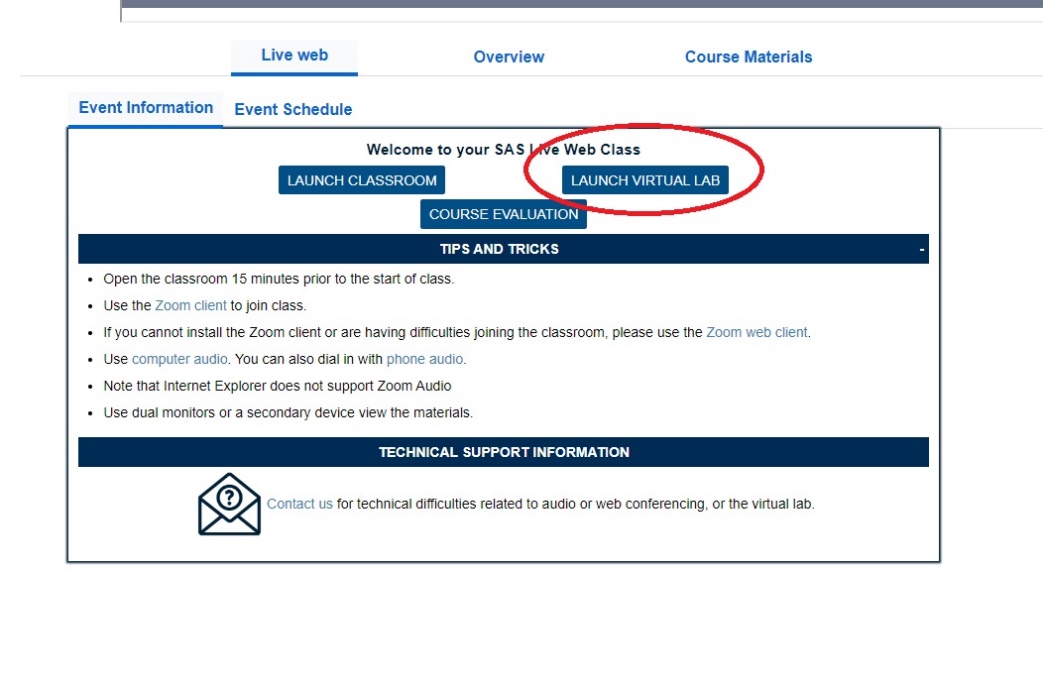
Click the ‘launch virtual lab’ icon on your
learn.sas.com course page.
If you only see a video, scroll down the page to see
the link:
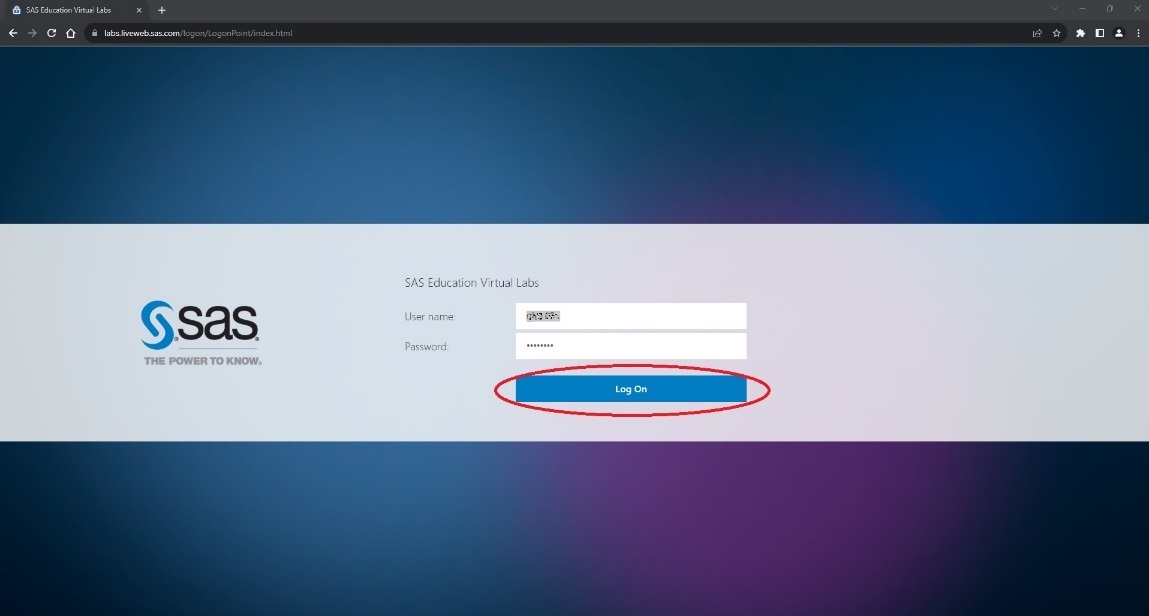
You will now be presented with the lab logon screen
with prefilled credentials.
Click log on as highlighted below:
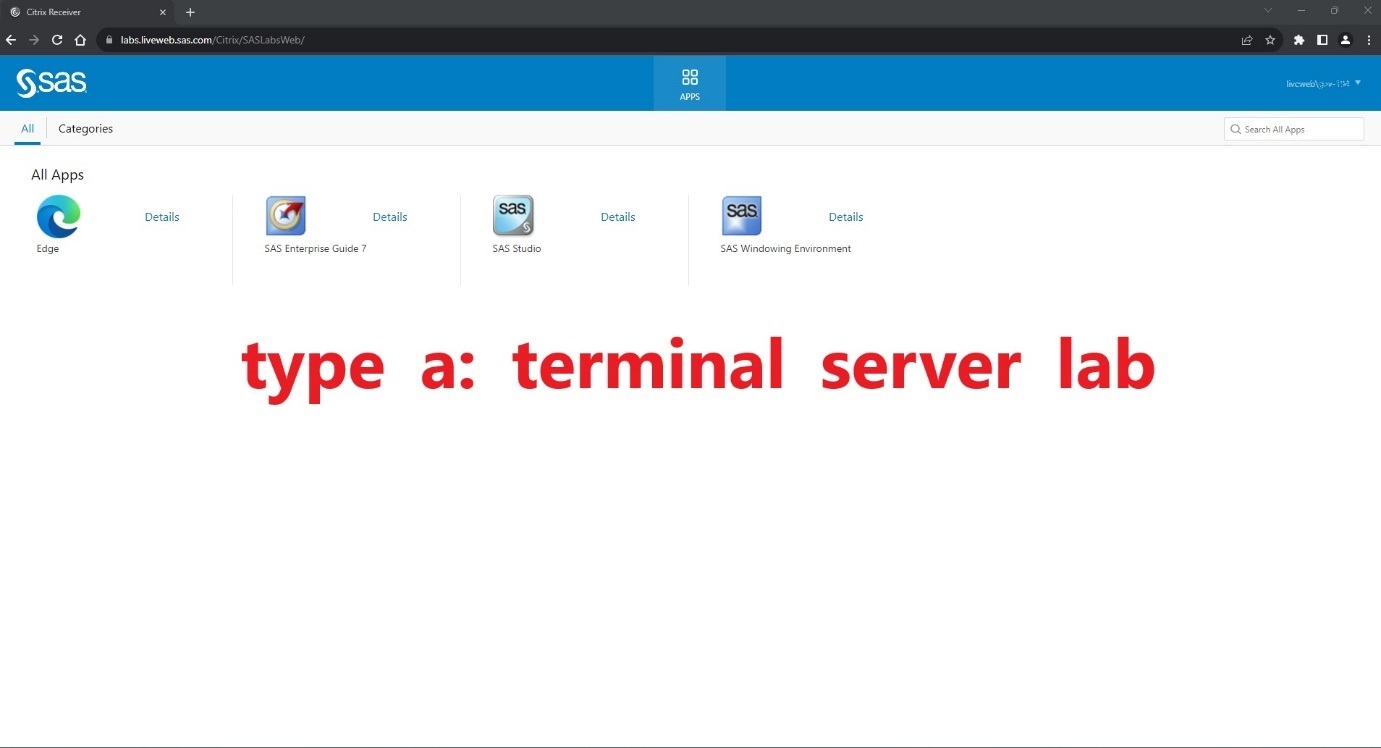
You will now be presented with a Citrix landing page similar to type A orB.
Type A workflow
Your instructor will let you know which application to
use for your course, click the icon to open:
Type B workflow
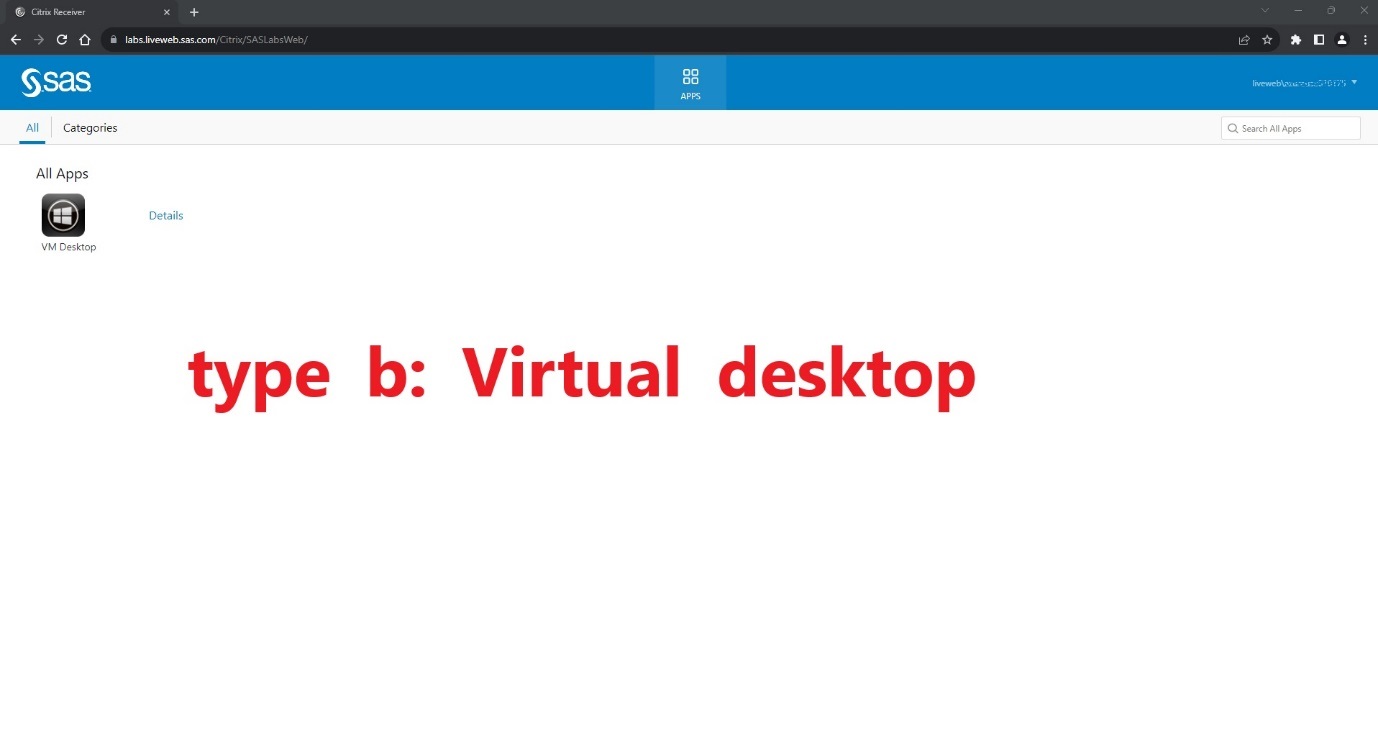
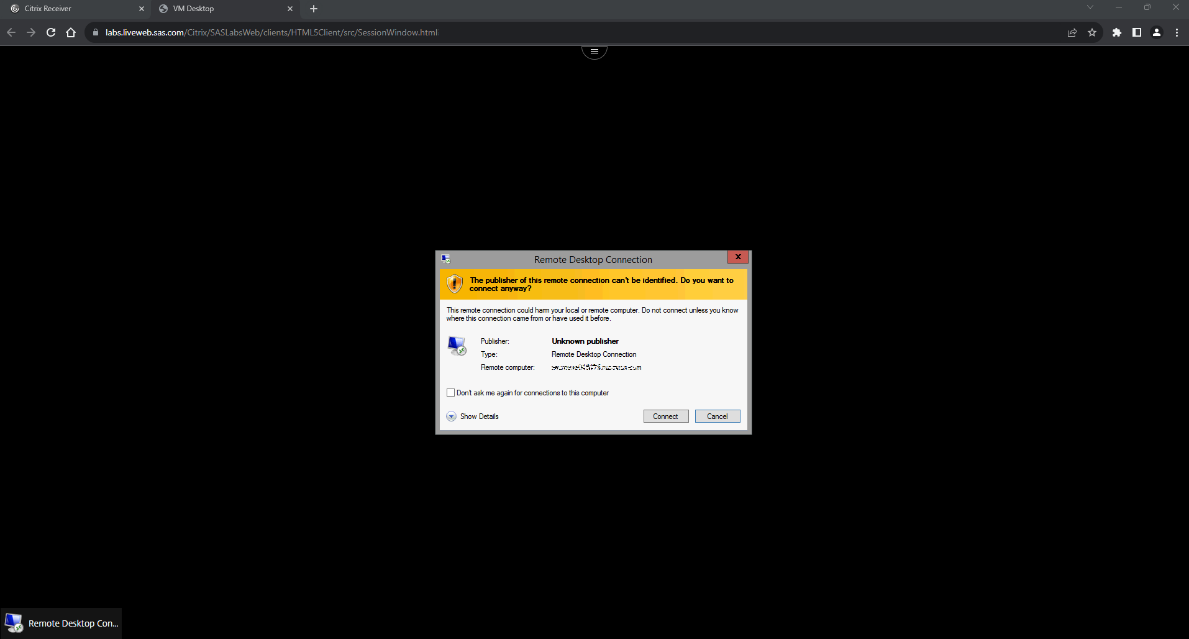
Click VM Desktop icon and you may be presented with
windows security prompt as seen below. Click ‘connect’ (This prompt is from the
virtual machine and not your local system):
Now you will see the virtual desktop:
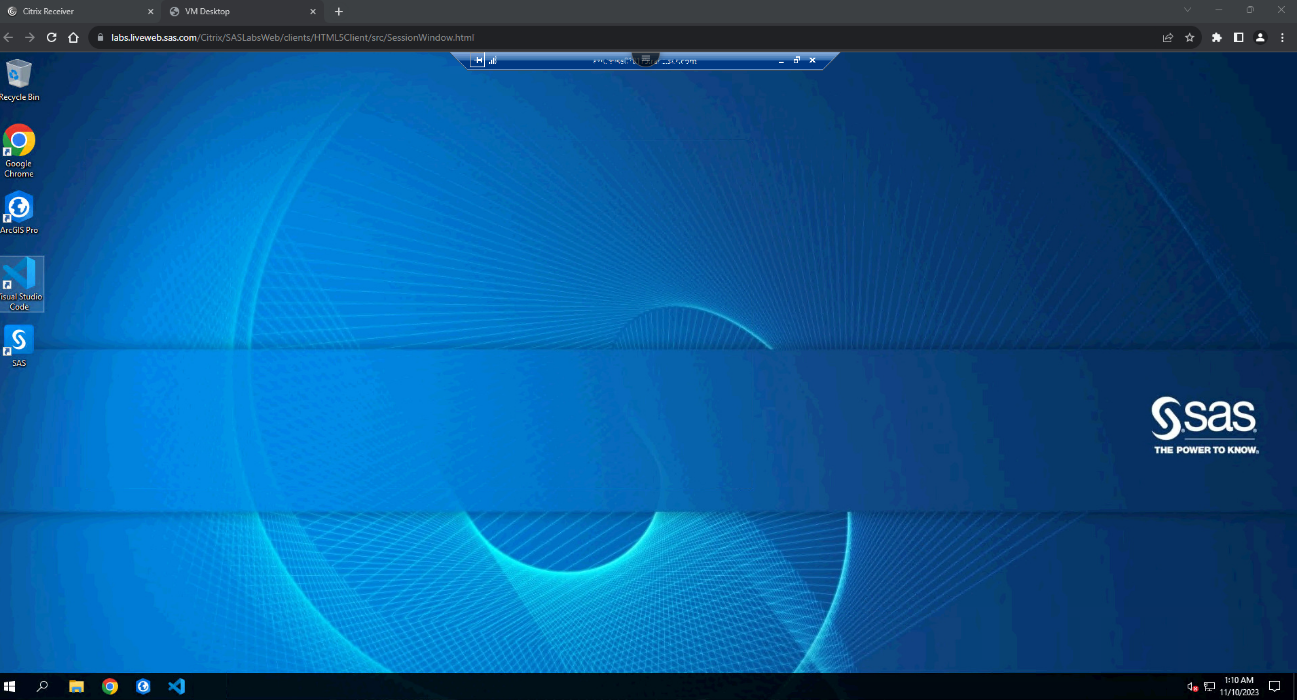
At this point you will wait for directions from your
course instructor, but most courses will use the Chrome browser on virtual
desktop which contains shortcuts to the applications you will use.
If you still require assistance, please email trainingtechsupport@sas.com and
we will get back to you as soon as possible.